Run CCleaner to clean Temp Files and repair Registry Errors
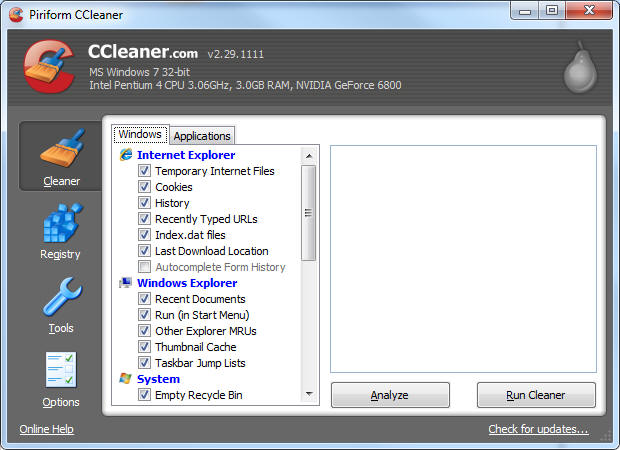
  After launching CCleaner, click the text link Check for Updates in the bottom right corner.  If there is a newer version, download and install it.

After installing the latest Version, Click the Run Cleaner button in the lower right hand corner to clear out temp files that slow windows down.  You may have to run more than once before it cleans all files.  When you see 0 bytes removed, you know it is done.
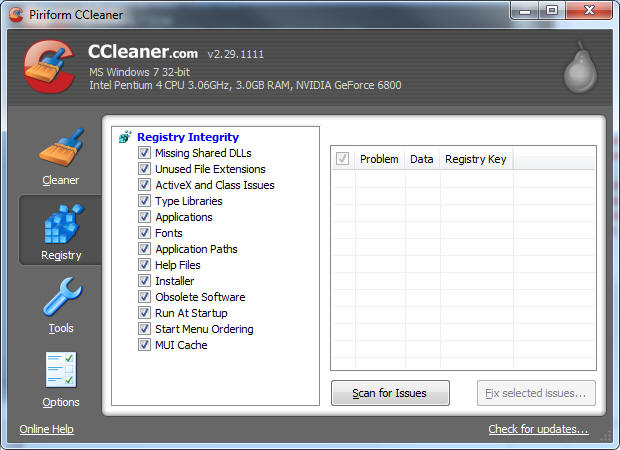
  Next click on registry on the big buttons on the left, then click scan for issues.  When the scan reaches 100%, click on Fix selected issues. 
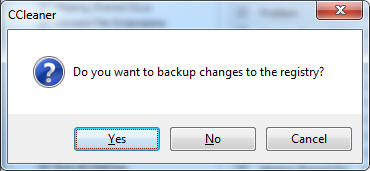
  After clicking Fix selected issues, Click yes to back up the registry.
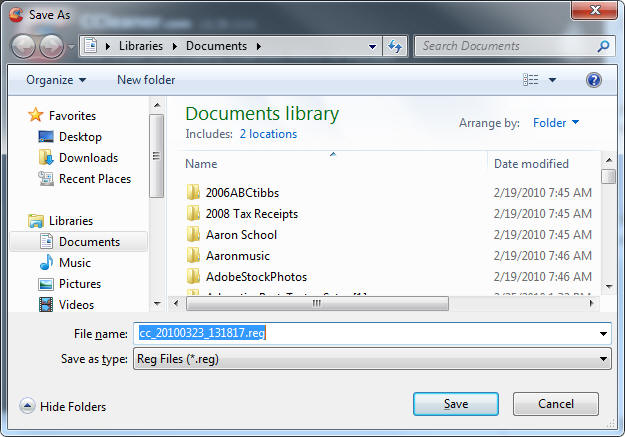
  Leave the default of your documents or your my documents folder and click save.
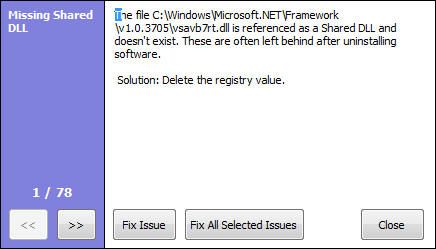
  Click Fix all selected issues, then click close when finished.